

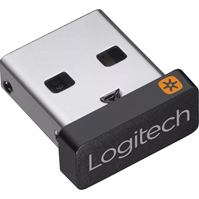
If you’ve lost the Logitech Unifying USB receiver from your keyboard and mouse kit or any other peripheral that uses Logitech Unifying technology,
you can purchase a new Logitech Unifying receiver and pair your devices (up to 6 devices with a single Unifying receiver).
To pair your devices, you can use Logitech Unifying software or Logi Options+
Method 1 – Pairing Logitech peripherals using Logitech Unifying Software
To do this, you must follow these steps:
- Download the Logitech Unifying software from the official website and proceed with the installation..
https://support.logi.com/hc/en-us/articles/360025297913-Unifying-Software
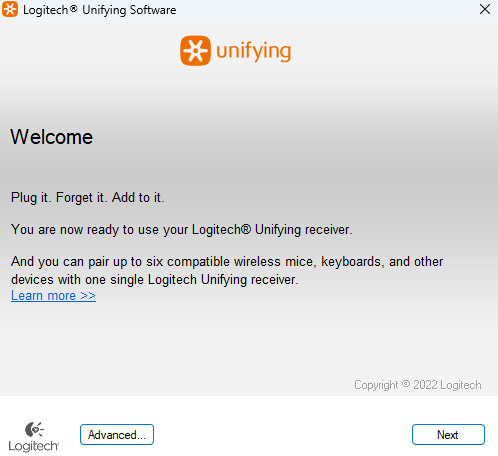
- Turn the peripheral (mouse or keyboard) off and on again.
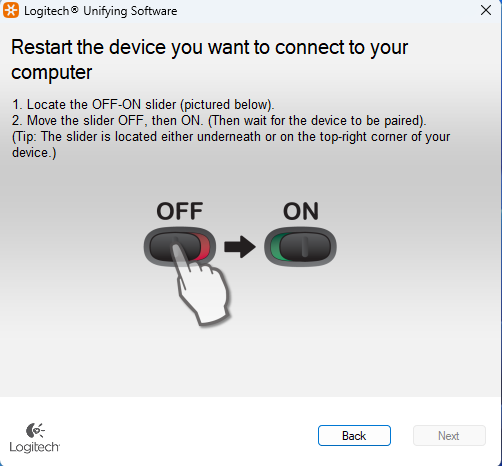
- Depending on the peripheral you connect, a device confirmation window will appear; in our case, we are connecting an M215 mouse and a K330 keyboard.
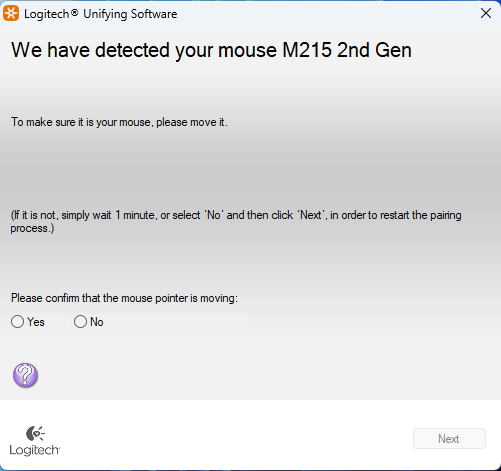
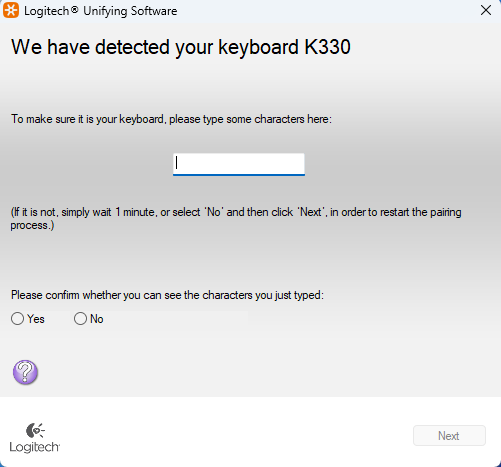
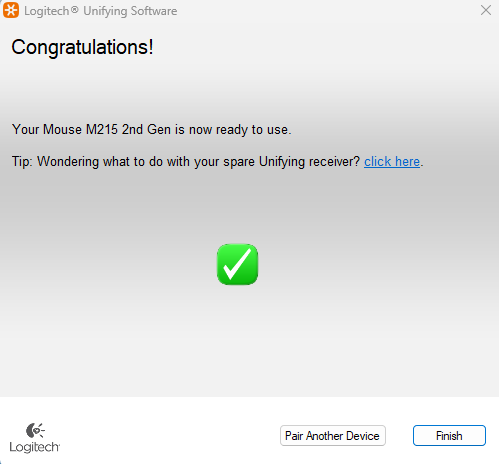
- After confirming the detected device, it will be paired to your Unifying receiver and you can use your peripheral without problems.
Method 2 – Pairing Logitech peripherals using Logi Options+ software
- Install the Logi Options+ software from the official website and install it
https://www.logitech.com/es-roam/software/logi-options-plus.html?srsltid=AfmBOoq7wGkai1fMCIewwTgC0-hnDadk_3msADwnh88IruU8oXZinJQd
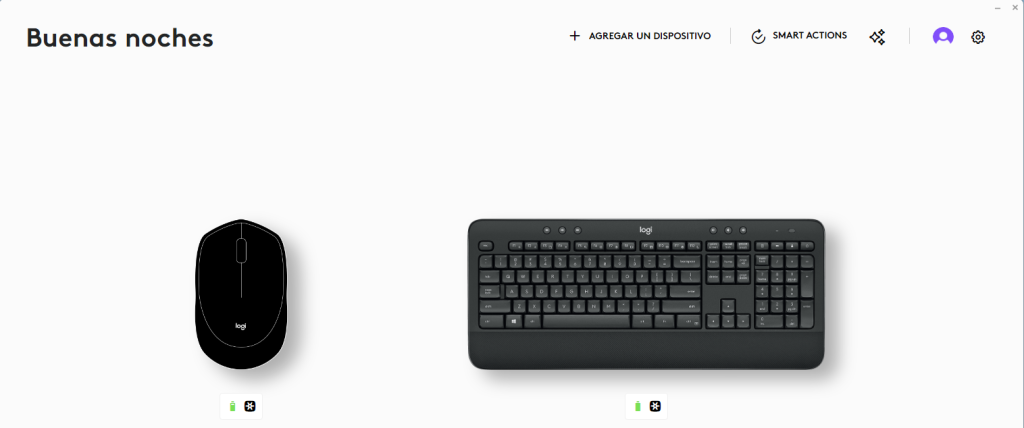
- Click on add device and select the receiver type (in our case Logi Unifying Receiver)
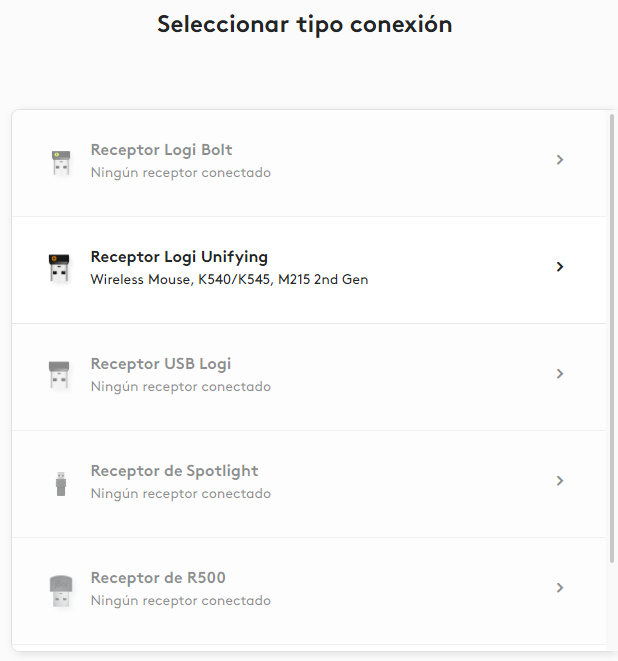
- Selecting the receiver will initiate the search for the peripheral device (We only need to turn the peripheral device off and on for it to be recognized)

- Once the peripheral is recognized, in our case a mouse, the following message will appear to confirm the detected device.
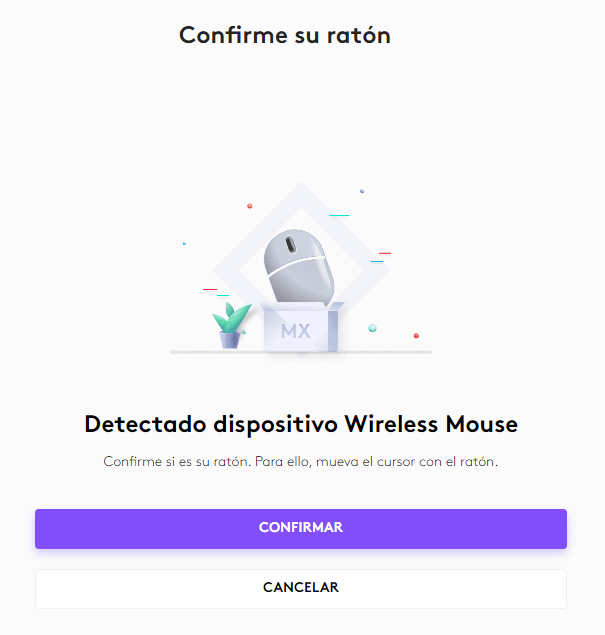
- Once the device is confirmed, you can configure it and use it.
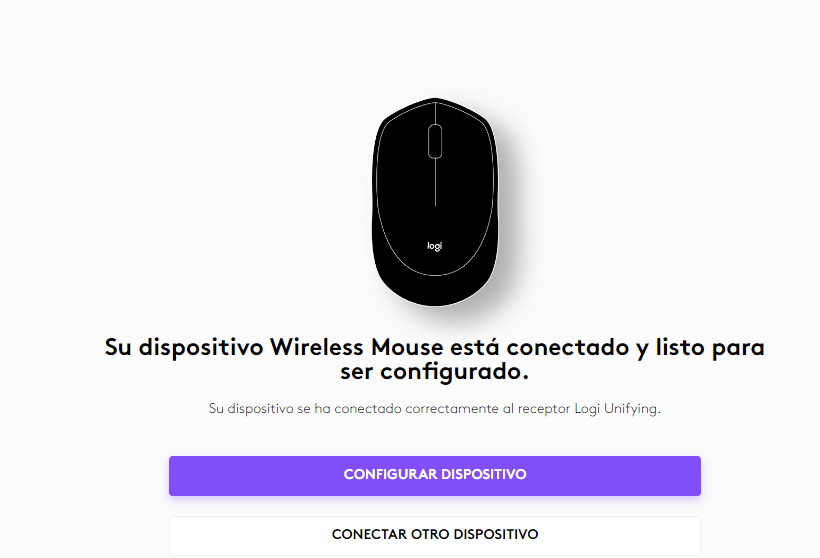
By following these steps, you are now ready to use your keyboard and mouse kit with your Logitech USB receiver.